Role-Based Permissions
Learn how to manage users, roles, and data access in Invy.
Invy uses a robust Role-Based Access Control (RBAC) system to ensure that your organization’s data remains secure and that users only have access to the features they need.
Understanding Roles
Every user in Invy is assigned a role that determines their level of access:
- Super Admin: Full system access, including tenant management and global settings.
- Admin: Full access to organization settings, user management, and all inventory data.
- Manager: Can manage inventory, locations, and reports within their assigned departments.
- Viewer: Read-only access to inventory and reports.
Managing Users
To manage permissions for your team:
- Navigate to System Settings → Users.
- Click on a user to edit their details.
- Select the appropriate role from the dropdown menu.
- Save your changes to apply the new permissions instantly.
Configuring Role Permissions
Enterprise administrators can fine-tune the specific permissions associated with each role. This allows you to define exactly which sections of the application are accessible to different user types.
To configure these mappings:
- Navigate to System Settings.
- Select the Role Permissions tab.
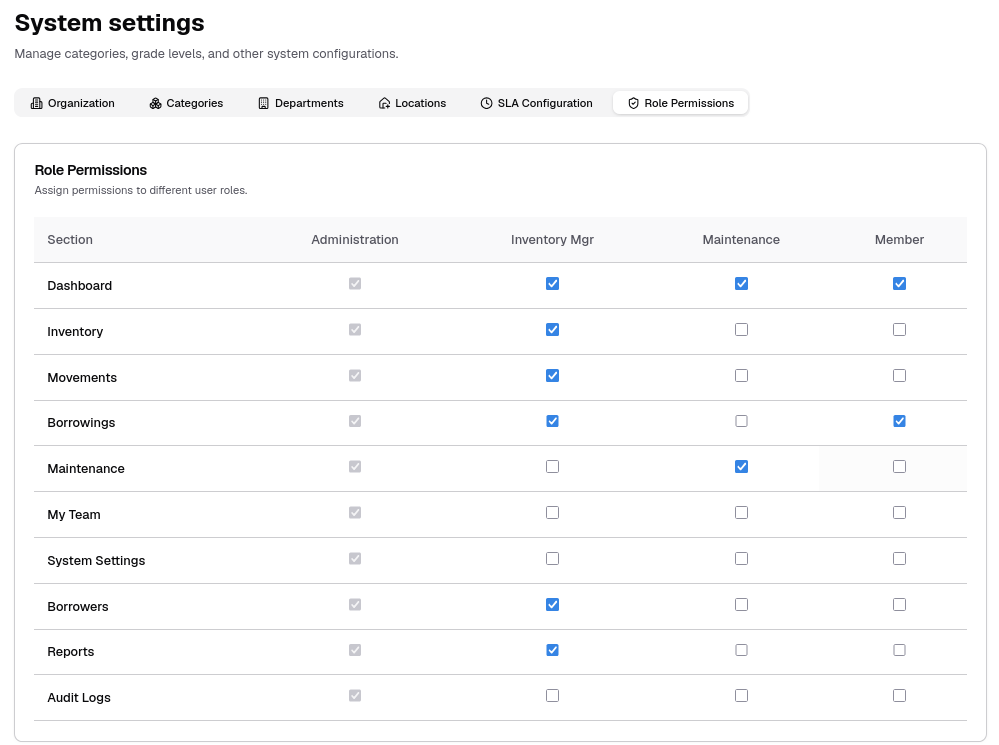
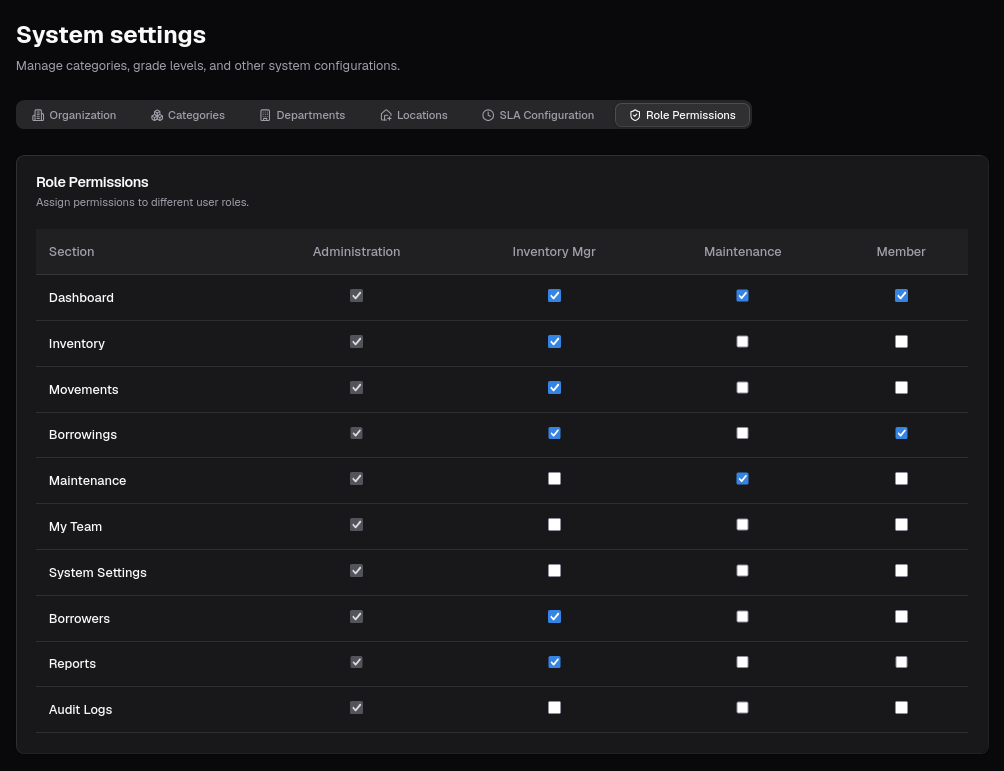
As shown in the interface above, you can toggle access for various application modules (Dashboard, Inventory, Movements, etc.) across different roles (Administration, Inventory Mgr, Maintenance, Member).
Department-Level Access
For larger organizations, you can restrict users to specific departments. This ensures that a “Manager” in the Engineering department cannot accidentally modify assets belonging to the Facilities department.